Sign in, find your way around the menu and see what you can do in your building.
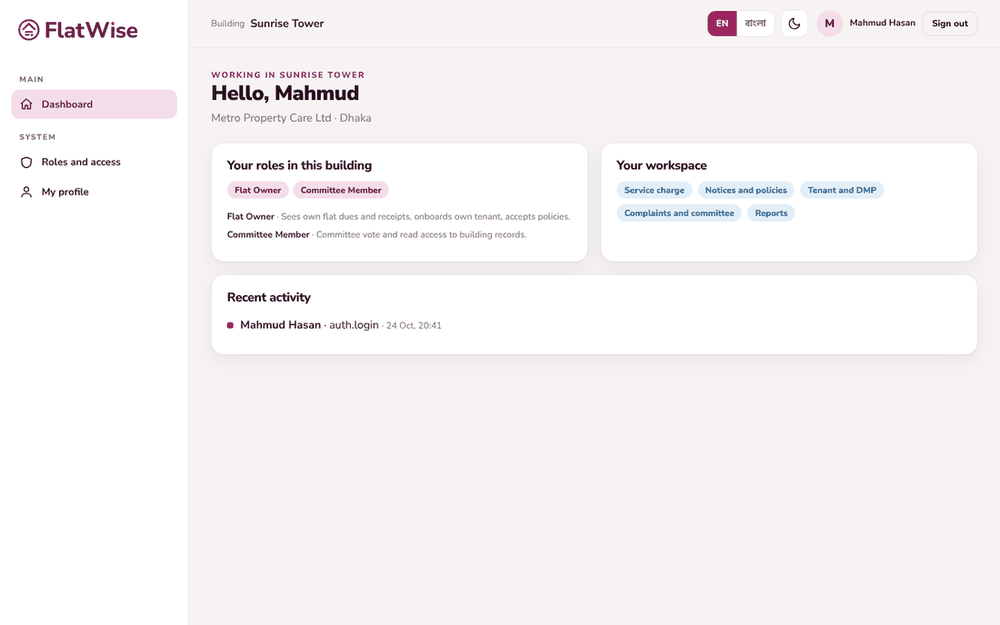 The dashboard shows your roles and your workspace
Steps
- Open the FlatWise address and sign in with your email and password. Your building admin gives you these.
- The left menu shows only the screens your role can use. On a phone, tap the three-line button at the top to open it.
- If you belong to more than one building, pick the building from the box at the top of the page.
- Use the language button (English or বাংলা) and the day or night button at the top right whenever you like.
- Tap the ? button next to a page title to read the help article for that screen.
Tips
Change the temporary password you were given the first time you sign in.
A menu item that is missing means your role or your building's plan does not include it. Ask your building admin.
Still stuck? Contact support
Tell us the screen, what you tried and what you saw. Do not send passwords.
Hours
[SUPPORT HOURS, for example Sat to Thu, 9:00 to 18:00]Send us a message

